This tutorial will show you how to install VMware Workstation 12 on RHEL/CentOS 7, Fedora 20-24, Debian 7-9, Ubuntu 16.04-14.14 and Linux Mint 17-18.
VMware Workstation 12 is a popular software which allows you to run multiple different virtual machines on physical hosts using the concept of Type II of hypervisors (Hosted Hypervisors). This tutorial also discuss some common issues during the installation process.

Install Vmware Workstation in Linux
What is new in Workstation 12
- May be the main target for releasing the 12th edition is increasing the virtualization compatibility between the new OS releases/distributions like “RHEL7, CentOS 7, Windows 10, ….., etc” and the upgrades in hardware like Intel Haswell microarchitecture support and improvements for high DPI displays.
- Unfortunately, there is no change in Virtual Machine resources limitations from 10th edition like: Max. Virtual CPUs, Max. Virtual disks and Max. Virtual network.
- Finally we have another two awesome features, first one is the integration between VMware Workstion 12 and VMware vCloud Air which give the ability to scale your virtual machine in the sky (External Cloud).
- Second one which should be useful one, the ability of creating desktop shortcuts for virtual machines which take productivity and usability to the next Level.
- There is also some another few features which you will discover by practice and make hands on labs.
Prerequisites
- Make sure that your system is 64-bit “VMware Doesn’t provide 32-bit edition” and its virtualization feature is enabled.
- Unfortunately, the 12th edition doesn’t support 32-bit processors may be due to the features improvements which need the higher level of processor BUT VMware didn’t talk about specific reasons.
- Make sure you have a license key to active the product OR you will work in the evaluation mode “the same features but with ONLY 30 day period” after evaluation mode period ends YOU MUST enter a license key to active the product.
- Before you begin this guide, you will need the root account OR non-root user with sudo privileges configured on your system (Physical host).
- Make sure your system and its kernel is up to date.
Step 1: Downloading VMWare Workstation 12
1. First login into your server as root or non-root user with sudo permissions and run the following command to keep your system up-to-date.
2. Next, download the software from VMware official site. You will download script file like “VMware-Workstation-Full-12.1.1-3770994.x86_64.bundle”, by default this script file downloaded without execute permission, so you will need to give it.
3. After downloading script file, go to the directory which contains the script file and make sure that script file is exist and have default permissions.
4. Give permission execute for all “for security reasons you may need to give the permission for the owner user only NOT for all”.
5. After setting permission, make sure to check the permissions again.
Step 2: Installing VMWare Workstation 12
6. The installation process follows a straight-forward steps, just issue following command to run the script file.
7. Once the script is running, you see the following window the screen.

Install VMWare Workstation 12
Just follow the one screen instructions until “Installation was successful” message appears.
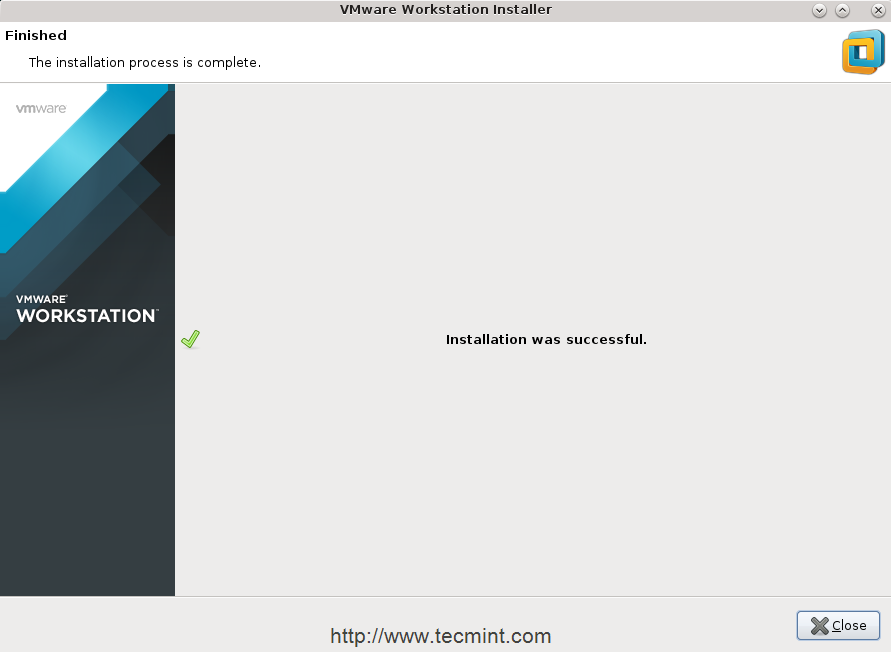
VMWare Workstation 12
Step 3: Running VMWare Workstation 12
8. To start the software for fist time you will find some issues as discussed below with fixes. To start the software type vmware in the terminal.
After running above command, you will see this message which notify you to install gcc compiler and some components. Just press ‘Cancel’ to continue.
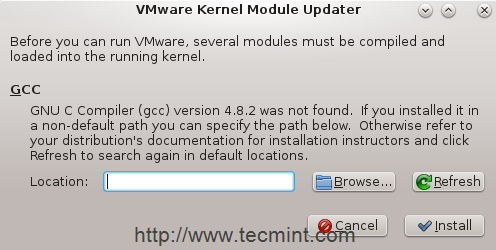
VMWare Kernel Module Updater
9. Return to the terminal, then lets install “Development tools”.
10. When it finished, lets try to start the software again.
This time another issue will be appear, its talk about kernel-headers, select “cancel” and lets check if it installed or not.
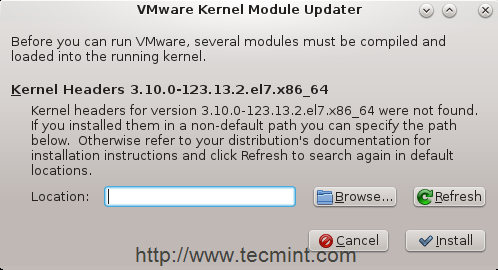
VMWare Kernel Headers Missing
If nothing appears install it using.
11. For further reasons which out of this tutorial scope, we will need to install another package “Kernel-devel”.
12. When it finished, lets try to start the software again “be patient, trust me ..it will be the last one ;)”.
Congratulations! we have solved all issues, you will see this window.
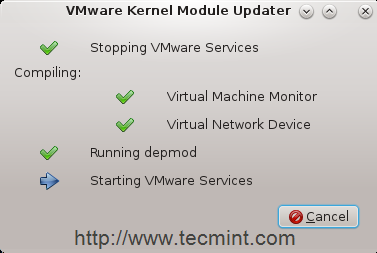
VMWare WorkStation Starting
It makes some modification in kernel modules and compiling some new tools just fewer minutes, the application start and home window appears and waits from you to kick start it and make your virtual machines.
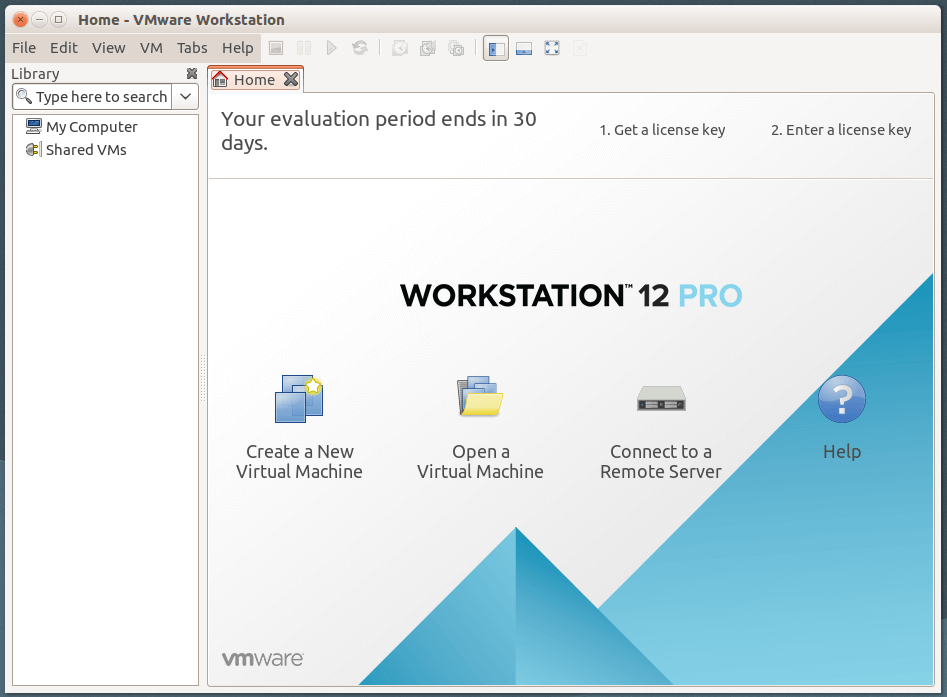
VMware Workstation 12
Conclusion
Congratulations everything has done successfully, you should use in-deep the new features of the NEW edition of VMware Workstation, Do your labs and across Virtualization Ocean, GOod LuCk.
